

My Friend Lost 10 Years of Family Photos When Her Phone Broke. Here’s the Free Tool That Would Have Saved Every Single One
She had thousands of pictures on that phone. Birthdays. Grandkids. Vacations. Gone
Her screen cracked and the phone stopped turning on. She took it to the phone store. They told her the data was unrecoverable. She cried right there at the counter.
That happened to a close friend of mine last fall, and I thought about it for days. Because I had just as many photos on my phone. And I had never backed up a single one of them either.
That is what sent me down the rabbit hole of Google features for seniors that most people never explore. And y’all, I found some things I should have known about years ago. Every single one is free, already available on your phone, and takes minutes to set up.
Today I am walking you through all six. Real talk, plain English, starting with the one that would have saved my friend’s memories.
Here’s what I want you to know before we get into this: you don’t need to understand how these tools work. You just need to know how to use them. Every single thing on this list is free, already available to you, and I’ll tell you exactly where to find it. Start with the first one. That’s all. Simple.
Disclosure: This post may contain affiliate links, which means I may receive a small commission if you make a purchase through my links — at no extra cost to you. I only recommend tools and products I personally use and trust.
Google Photos: Never Lose a Memory Again
IF MY FRIEND’S STORY ABOVE MADE YOUR STOMACH FLIP A LITTLE – THIS ONE IS FOR YOU FIRST
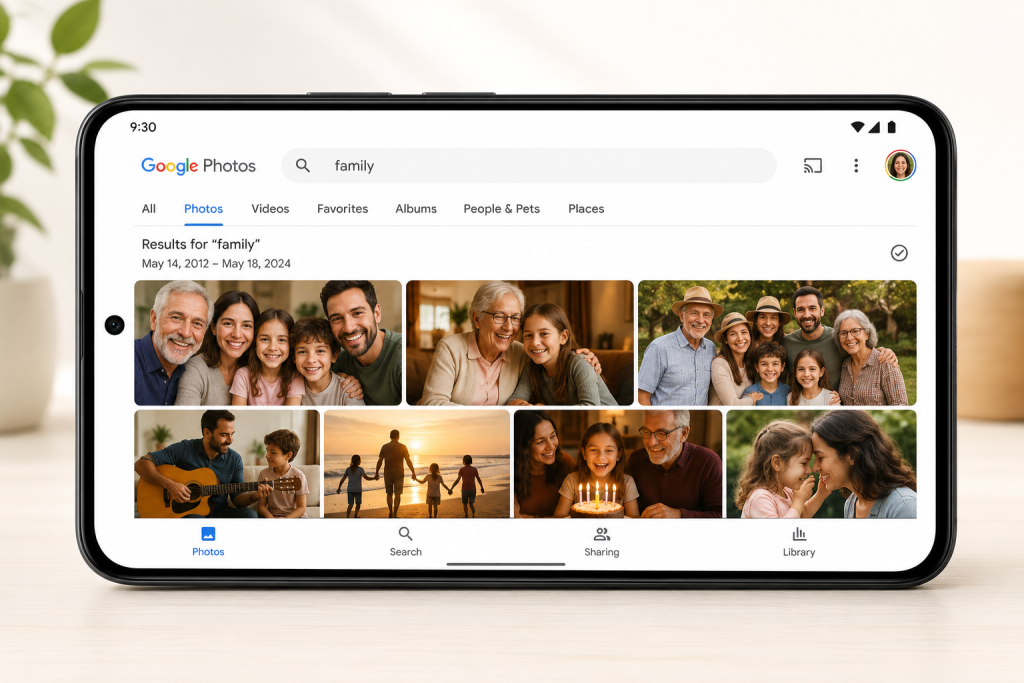
Google Photos automatically backs up every picture and video on your phone to the cloud. That means if your phone breaks, gets lost, or just gives up the ghost one day, your photos are still safe. Accessible from any device. Not gone.
But here’s the part that genuinely surprised me: the search.
I typed “Christmas” into the Google Photos search bar and photos from 2009 showed up. I typed my granddaughter’s name and every photo of her face appeared – ones I took at her birthday, at the park, at Easter. Photos I hadn’t looked at in years. The app recognized faces, places, and events on its own without me ever organizing a single album.
How I use it: I opened Google Photos (it was already on my Android), signed into my Gmail account, and let it back up my existing photos over WiFi. Took about an hour the first time since I had a lot. Now it backs up automatically in the background. I don’t think about it. It just happens.
How to get it:
- Android: already installed on most phones. Search “Google Photos” in your apps.
- iPhone: free in the App Store. Sign in with your Gmail account.
QUICK CHECKLIST
- Open Google Photos on your phone
- Sign in with Gmail
- Make sure backup is turned ON (tap your profile picture, then “Photos settings,” then “Backup”)
- Try searching a family name or holiday in the search bar
Google Lens: Point Your Phone and Get Instant Answers
I USED THIS TO IDENTIFY A PLANT THAT HAD BEEN GROWING IN MY GARDEN FOR THREE YEARS AND I STILL DIDN’T KNOW WHAT IT WAS

Turned out it was a spiderwort. Completely harmless. But for three years I’d been wondering. One second with Google Lens and I knew.
Here’s what it can do: you point your phone camera at something and Google tells you what it is or finds information about it. Plants. Barcodes. Labels in small print. Restaurant menus. Foreign text. Products at the store when you want to know if they’re cheaper online.
My Take: The best use I’ve found for Google Lens is reading the fine print on prescription bottles and insurance documents. My eyesight isn’t what it was, and holding my phone up to that tiny print and having it read or enlarge it has been genuinely useful. Not glamorous, but practical.
How to find it:
- iPhone: download the free Google app from the App Store, then tap the Lens icon inside the search bar.
- Android: press and hold the Google search bar at the bottom of your home screen. Look for the camera-in-a-circle icon. That’s Lens. Or when you click Chrome, it’s to the right of the search bar beside the microphone.
Google Keep: The Grocery List That Finally Stays Put
I USED TO WRITE MY GROCERY LIST ON A PIECE OF PAPER AND LEAVE IT ON THE KITCHEN COUNTER AT LEAST TWICE A MONTH. GOOGLE KEEP FIXED THAT
Google Keep is a free notes app that syncs across every device you own. Write something on your phone and it’s on your tablet and computer too. Check something off your grocery list at the store and it’s checked on your phone and your spouse’s phone if you share the list.
Things I actually use it for:
- Grocery list (share with my husband so he can add to it too)
- A running list of shows I want to watch, books I want to read
- Voice notes when I’m driving and think of something I don’t want to forget
- Photos of my medicine bottles and dosages in case I ever need that info fast & to give to the doctor
- My “before I shop online” list – things I’m thinking about buying but want to wait 48 hours on first
- My to-do-list
How to get it: Search “Google Keep” in your app store. Free. Takes 60 seconds to set up.
Quick Tip: I also use it on my desktop and laptop. – it syncs with your phone. One of my favorite Google Apps.
Tip:
Next time you’re at the grocery store or at Target and you can’t decide between two similar products, point Google Lens at one of the barcodes. It pulls up that exact item online so you can see reviews and compare prices. Takes about 10 seconds and has saved me from buying the overpriced version of something more than once.
Google Drive: Your Free Filing Cabinet That Lives in the Cloud
GOOGLE DRIVE GIVES YOU 15 GIGABYTES OF FREE STORAGE AND A DOCUMENT SCANNER THAT MOST PEOPLE HAVE NO IDEA IS THERE
I use Google Drive to keep digital copies of documents I don’t want to lose but also don’t want stacking up on my counter. Insurance cards. My Medicare card. Receipts I need to hold onto. Any letter or form that might matter later.
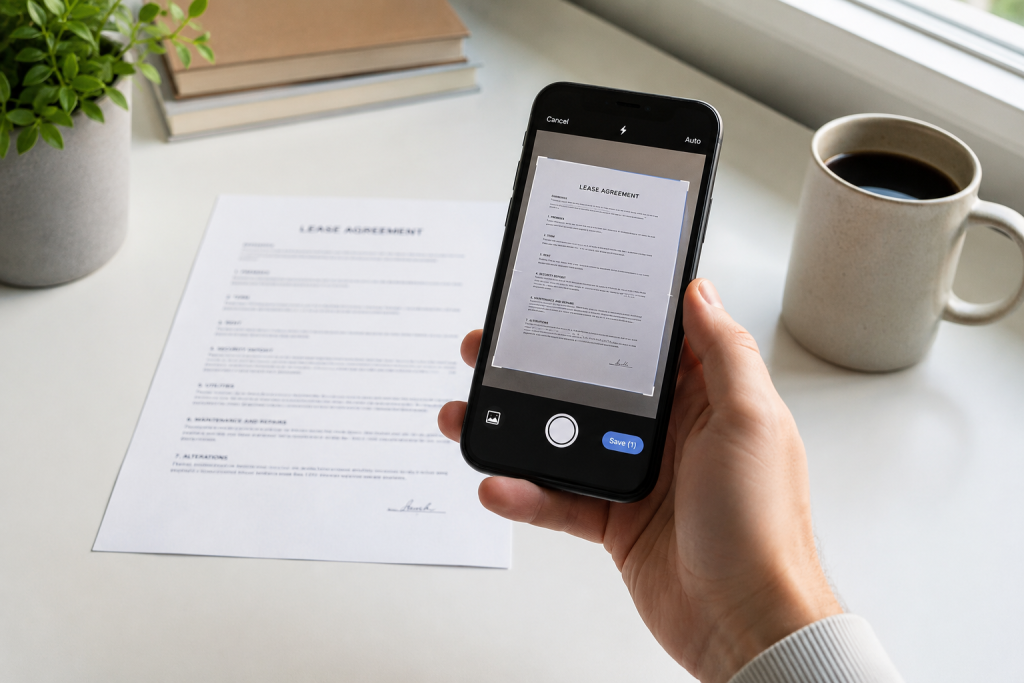
Here’s the scanner part: open the Google Drive app, tap the plus sign at the bottom, choose “Scan.” Hold your phone over any document. It takes a clean, flat photo and turns it into a PDF automatically. No scanner required.
Reader scenario: Let’s say you get an important letter from Medicare and you’re not sure if you need to keep it. Scan it into Drive, put it in a folder labeled “Medicare 2026,” and either file the paper or shred it. Six months from now when someone asks if you got that letter, you can pull it up from your phone in 30 seconds.
How to access it: Already on most Android phones. Free in the iPhone App Store. Sign in with your Gmail.
Quick Tip: You may be thinking that you download those types of documents and save them on your hardrive and that’s fine. Never hurts to have documents in more than one place. The thing with having a copy in Google Drive is that it’s accessible no matter where you are.
Google Maps: Three Features Worth Your Time Beyond Just Directions
MOST PEOPLE USE 10% OF WHAT GOOGLE MAPS CAN ACTUALLY DO
Three things I use that most people don’t know about:
Save your favorite places. Found a thrift store worth going back to? A doctor’s office you had to hunt for? Tap the name on the map, then tap “Save.” It goes to a personal list you can pull up anytime. I have a list called “Good Finds” with about 15 places on it. I do love those thrift stores and auction houses.
Check how busy a place is before you drive. Many business listings show real-time busyness. Before I drive to a thrift store, I check if it’s packed. If it shows “busier than usual,” I come back Thursday afternoon instead.
Download maps offline. Before I drove to visit family last summer in an area with spotty cell service, I downloaded the map for that region over WiFi at home. Google Maps gave me turn-by-turn directions the entire trip with zero cell signal. This one is a genuine road trip game changer.
My Mantra
I use simple tools to support my daily life.
Google Calendar: The Family Coordination Tool Nobody Told You About
IF YOU HAVE FAMILY SPREAD ACROSS DIFFERENT CITIES AND YOU STILL COORDINATE EVERYTHING BY PHONE TAG, THIS IS GOING TO HELP

Google Calendar lets you share a calendar with specific people. My daughter can see my doctor appointments so she knows when I might be harder to reach. I can see when my grandkids have school events so I don’t plan visits on those days. When someone adds something, everyone who shares the calendar sees it automatically.
It also pulls events out of your Gmail automatically. If I get a flight confirmation or an appointment reminder by email, Google asks if I want to add it to my calendar. That single feature alone has saved me from missing things I meant to write down and didn’t.
My friend who lost her photos? She has Google Photos set up now. The first thing she did after she got her new phone was turn on backup. It took five minutes. I’m glad she did it, and I’m glad I did too. One tool, one afternoon, and a whole lot of peace of mind.
Your One Homework Assignment This Week
Pick whichever tool on this list solves your most annoying problem right now. If you’re worried about photos, start with Google Photos. If you lose paper lists, start with Google Keep. If you’re frustrated by fine print, try Google Lens.
Just one. This week.
You can read more about free apps that save boomers real money here: Free Apps For Boomers
You don’t have to use every new tool at once. You just have to find one that solves a problem you actually have and start there.
And if you want to make sure your actual money is as organized as your phone, the Money Leak Reset ($9) is a simple printable guide that helps you find where your money is quietly disappearing each month. MONEY LEAK RESET
Talk Soon,

Come Join The Thrifty Boomers Facebook Group